Monday, March 21, 2011

Hibernate VS Sleep VS Shut-Down

Friendly Computers found this article useful and would like to share it with you.

There are many ways to shut down and restart your computer, but – which does what, and which should you use when ?

The answer depends mostly on you. Are you into saving energy or boot-up time? How often do you leave your computer and for how long ?

There are three main shut-down options available in Windows: Shut-Down, Sleep and Hibernate (names may vary depending on the Windows version). In Vista and Windows 7, there is also a fourth option; Hybrid Sleep.

Let’s explore the topic.

Environmental friendly

If your concern is to save energy, and you don’t mind the longer Boot Up time – then you should always use the “Shut Down” option. This will shut down every running service and application and wipe clean your RAM. This option saves the most energy as the computer is not using any power at all when in this state. There might be some power consumption from the main-board as it is still connected to your outlet, but this is significantly little.

Hibernate Vs Sleep

The difference between the two is power-consumption – one use less power than the other.

Sleep Feature = Pause

129107 simple red square icon media a media27 pause sign 220x220 Hibernate VS Sleep VS Shut DownSleep is a power-saving state which keeps enough voltage across your RAM to retain the memory for when you “wake up” your computer again.  This mode use the most power of all the “Power-Off Modes” as the computer need to be able to keep your RAM alive. The Sleep Feature is recommended when you leave your computer for a short period (like going to lunch or step out for a few hours). Putting your computer into the sleep state is like pausing a DVD player—the computer immediately stops what it’s doing and is ready to start again when you want to resume working (usually within seconds).

Hibernate

The Hibernate function was intended primarily for laptop users (though available for Desktop Computers as well). This mode let you save much more power when not using your computer (as in saving battery). When you put the computer in Hibernate Mode, it stores the contents of your RAM (Services, clipboard etc.) to your hard-drive (hiberfile.sys) which on reboot is read back into the RAM which takes about a minute to be completed, but on the upside you do save more energy.

Hybrid Sleep

Hybrid sleep is both Sleep and Hibernate, primarily intended for Desktop Computers. Hybrid Sleep keeps the RAM alive (as in Sleep Mode) and stores the Content of your RAM to your Hard-Drive (in case of a power failure). It also stores any open documents before putting your computer into a low-power state which allows for a quick Reboot later on. When hybrid sleep is turned on, putting your computer into sleep automatically puts your computer into hybrid sleep.

Source: http://mintywhite.com/windows-7/7maintenance/hibernate-sleep-shutdown/

Monday, March 7, 2011

How to Attach Sticky-Note Reminders to Windows and Applications

Friendly Computers would to share this article with you.

image

Some applications come with a boatload of keyboard shortcuts; these can make you very fast, but can be difficult to remember, especially if you customized some of them. What if you could have your own little cheat sheet that would pop up next to the application every time your ran it? Read on to see how you can make one.

We’re going to be using an excellent (and free) application called Stickies. If you don’t have it yet, go to the Stickies homepage, download it, and install it.

Creating Your First Cheat Sheet

The first thing we’re going to do is create the sticky note containing whatever info you want to have on hand. With Stickies running, hit Win+S. You should see a blank sticky note, much like the one below.

screenshot_174

Yours may not have the current date and time in the caption – that’s a setting you can toggle, but we don’t need it for now.

Next, set the title for your sticky by clicking it and pressing Ctrl+Shift+T. You can also right-click the caption and select Set Title from the context menu.

image

Now that you’ve set the title (say, Total Commander Tips), fill in the text with whatever you’d like to remember. Use Ctrl + and Ctrl – to increase or decrease the font size, Ctrl+B for bold, Ctrl+I for italics. You can also select just a portion of the text to make it larger (think subheadings).

With your sticky note all ready, it’s now time to attach it to the window. Make sure the “target application” is running, so we’d have a window to attach the note to. Then, right-click the note’s caption and select Attach.

image

In the Attach Sticky window, locate your application in the list and click it. You can also toggle the box that says “Only if visible” to have the note visible only when the application window isn’t minimized.

image

The sticky note you created will now appear whenever you run your application, and disappear when you close the app. If you’d like to make the note always on top, click it and hit Ctrl+T. This way no other windows would cover it. That’s it – you now have a handy application-specific cheat-sheet.

Source: http://www.howtogeek.com/howto/45189/how-to-attach-sticky-note-reminders-to-windows-and-applications/

Secrets to Making the iPad Your Only Mobile PC

Friendly Computers found this article interesting and would like to share it with you.

There are a lot of reasons to rely on the Apple iPad as your sole, or primary mobile computing device. It is smaller, lighter, has longer battery life, and offers a more functional user interface than a notebook for staying productive on the go. iOS is a "mobile" OS, while Windows and Mac OS X are "desktop" operating systems--you do the math.

Still, out of the box the iPad is primarily geared for Web surfing, watching movies, playing music, and reading eBooks. It takes a little tweaking to get the right tools in place to optimize the iPad for use as a mobile computing platform for business, and not just for entertainment.

The iPad can replace your notebook, but only with the right tools in place.Typing: OK. This is not a tool, but the lack of a physical keyboard is a common jab made at the iPad when it comes to considering it as a productivity tool for business. Let me just say that the vast majority of you use the two-finger hunt and peck typing method anyway, and are not 100 word-per-minute typing speed demons. The iPad display sensitivity is the best I have seen on tablets and smartphones, and you should be able to hunt and peck your way around just as fast as you do at your desktop keyboard.

E-mail: E-mail is arguably the most important function of a mobile computing device. You can set your e-mail accounts up on the iPad, but if you want to make sure you get your messages on your desktop PC, as well as your iPad you need to make sure the account is set up properly. The iPad e-mail settings can be configured to delete the message from the server when it removed from the Inbox, after seven days, or never. You need to also make sure that your PC e-mail software is configured to leave the message on the server for a period of time as well so that both devices can get the message rather than one stealing it before the other.

A better option is to either use an Exchange e-mail account, or a webmail like Google's Gmail. With Exchange, the Inbox and folders on the iPad are kept in sync with the information on the Exchange Server and the PC, so there is no worry about the one device getting the message before another. With webmail, both the PC and the iPad would be accessing the same information on the Web so there is no reason for conflict.

Productivity: You need to be able to work with documents while on the go. You might not write the next great American novel on your iPad, but you at least need to be able to open and edit Microsoft Office files. Get the DocumentsToGo app to be able to view, edit, and create Microsoft Word, Excel, and PowerPoint files. DocumentsToGo also lets you view Adobe PDF and Apple iWork files, and it can view, edit, and sync with online file storage such as Box.net--which we will cover next.

Files: One of the hardest parts about having both a desktop PC and a tablet as a mobile device is syncing and managing files. For one thing, Apple's iOS doesn't provide any direct file and folder structure like a desktop OS, and even if it did, it would be a pain to remember to sync the files you might need while on the go. The better solution is to adopt an online file storage solution like Box.net or SugarSync. If you use online file storage by default from both your PC and your iPad, the files will always be available online to both platforms and you won't get stuck without access to a critical file.

Access the Network: Sometimes you might need to connect to applications or data hosted on company servers. Of course, you don't want to be connecting to company resources using the insecure connection at your local neighborhood Starbucks. A VPN client like Cisco AnyConnect can let you connect securely to the applications and data you need. To use the Cisco AnyConnect app, your company has to be have the right Cisco VPN tools and licensing in place. There are other VPN options, though, including the VPN tool built in to iOS.

Access Your PC: After all is said and done, there may still be some software that runs on your PC that you simply can't replace on your iPad. That is where remote desktop solutions come in. Apps like Citrix GoToMyPC and LogMeIn Ignition enable you to establish a remote connection back to the PC sitting at your desk, and work with the software and data on it as if you were sitting in front of it.

By installing the right apps and adopting a few simple practices, the iPad can be everything you need in a mobile computing platform. Even better, it can deliver in a tablet that is thin, and light, and has the battery endurance to last all day.

Source: http://www.pcworld.com/businesscenter/article/221486/secrets_to_making_the_ipad_your_only_mobile_pc.html#tk.hp_new

Wednesday, August 18, 2010

15 Things Every PC User Should Know

Friendly Computers would like to share with you 15 things every PC user should know.

Think you know tech? If you don't have a handle on every single one of these 15 tech facts, habits, and efficiency tricks, you're not living up to your potential.

1. Don't double-click everything. Windows 101: Double-clicking is how you open items in Windows. It's not how you open links in your Web browser, click buttons in dialog boxes, or do pretty much anything else--and if you reflexively double-click, you might accidentally zip right past something important or submit a form twice. If you don't need this reminder yourself, chances are you know someone who does.

2. Use slashes and backslashes in the appropriate situations. Let's get it straight: / is a slash (or forward slash, if you must), and \ is a backslash. Backslashes are conventionally used for Windows file paths (C:\Program Files\Whatever), while slashes are used for Internet addresses (http://www.pcworld.com/howto.html).

3. Record the exact error message. When your PC crashes, it'll usually try to tell you why it is doing so--albeit with a string of numbers and letters that you won't understand. Write the message down in its entirety (or take a screenshot, if possible) so you can later plug it into Google or give it to your tech support agent. If your PC didn't provide an error message, go to Action Center (in the Control Panel) and see if it shows up under 'View archived messages' or 'View problems to report'.

4. Bring deleted files back from the dead. When you delete a file from your PC or memory card, you're not wiping it off the actual hard drive. Instead, you're simply removing the index information that tells your PC where the file is, at which point the PC is free to treat the part of your disk that contain that file as empty space that it can write something else to. If you've accidentally deleted something, undelete utilities such as Recuva can help you find those files again as long as you haven't already written over that file with something new.

DBAN; click for full-size image.Don't leave your personal data on your old PC's hard drive. Nuke it completely with Darik's Boot and Nuke.

5. Wipe your hard drive before getting rid of it.Because your PC doesn't immediately get rid of the files you delete, you can't just reformat your hard drive before recycling or selling your old computer--because someone might be able to use an undelete app to recover your sensitive data. We have all kinds of tips for completely erasing an old drive, but the short version is: grab Darik's Boot and Nuke.

Uncheck the boxes; click for full-size image.Want a totally worthless toolbar added to your browser? No? Then uncheck the box for that option before you install updates.

6. Uncheck the boxes before you install. Lots of helpful apps out there give you the option of installing search toolbars and other add-ons--and some of them are so pushy about being helpful that their installers are configured to install the uninvited extras unless you check a box saying you don't want them. Not only is each add-on another thing that your PC needs to load, but you have no idea what kind of data it could be sending out. They come bundled with the app because they make money for the app developer, not because they're particularly useful. So take a close look at what you're installing before you click Install--and in return, the installer won't change your search engine or install apps you don't need.

7. Beware of viruses living in Office docs. Experienced Microsoft Office users can take advantage of its built-in Visual Basic for Applications support to automate complex tasks with macros. However, malicious coders can use those same tools to design viruses that may interfere with your work and that of your colleagues. By default, Office is set to disable all macros and notify you when a doc you're reading contains them (to toggle this setting, in Word, select Word Options, Trust Center, Trust Center Settings, Macro Settings), so you should already be safe on this score.

8. Be skeptical of "cleaning" apps. Apps that make vague claims about improving your PC's performance and clearing out its clutter (Registry cleaners, I'm looking at you) will generally do more harm than good (if they do anything at all). To clean up your system, simply run Disk Cleanup (to reach it, select Start Menu, All programs, Accessories, System Tools); it comes with every Windows installation and it won't mess up your PC.

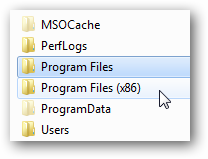
9. Uninstall your old apps. If you regularly download and install new apps from the Internet, you should get in the habit of pruning your collection every now and then. To do so, open the Programs and Features control panel, scroll through the list, and click Uninstall to ditch items you no longer want. You may need to take a trip into your C:/Program Files/ folder to hunt down a few additional unused apps. The less stuff you have on your PC, the less things are to go wrong.

10. Don't let a spilled drink ruin your laptop. If you keep your cool when a spill occurs, you may be able to prevent your data from disappearing and your motherboard from frying. Instead of panicking, quickly but methodically unplug the power cord and yank out the battery--don't wait for Windows to power off. Next, detach anything connected to the PC (network cables, USB devices) and pull out any readily removable components such as an optical drive. Tilt the laptop to try to drain the liquid in the direction that it spilled onto your PC, but be careful--you don't want to tilt the laptop in a direction that would allow the liquid to seep even deeper in. If you see liquid on the surface of the laptop, dab it off with a towel. At this point, unless you're comfortable disassembling your PC and cleaning it with electronics cleaner, you'll probably want to take it to a tech.

11. Turn down UAC. Both Windows 7 and Windows Vista include a security function called User Account Control, which dims the screen and flashes a dialog box whenever you install an app or change your system settings. Though this arrangement can be useful for catching sneaky apps that are trying to install or change things without your knowledge, it can also be annoying. If you use Vista, grab TweakUAC to make it less annoying without turning it off. If you use Windows 7, the default settings aren't too bad, but I recommend that you go into the User Accounts control panel, click User Account Control settings, and change the setting to the third notch down, so UAC will still warn you but it won't dim the screen.

12. Don't work in your admin account. Many PC users are accustomed to doing their everyday work while logged in to their PC's administrator account--especially in Windows XP. Doing so can save you the hassle of having to log in and out when you want to install apps or make changes, but it also leaves you much more vulnerable to viruses and malware--so don't do it.

Icon View; click for full-size image.The Control Panel is far easier to navigate when you can see all the icons at a glance.

13. Keep your Control Panel in Icon View. The Control Panel's Categories view can be useful if you're intimidated by the many different options available, but it can also make finding what you're looking for more difficult (especially if you're following detailed instructions that refer to the control panels by name). Click Classic view on the left (in Vista) or choose Large Icons from the View bydropdown menu in the upper right (in Windows 7), and you'll have ready access to all of the control panels.

Notification Area Icons; click for full-size image.Limit the clutter in your system tray by paring down the list of icons that occupy it.

14. Clear your system tray.Apps often park themselves in the system tray (the row of icons on the right side of your taskbar) and stay open without your realizing it. Take the time to clear it out occasionally. Open the Notification Area Icons control panel, and check the box on the bottom that says Always show all icons and notifications on the taskbar to get a sense of how cluttered your system tray is; then right-click each one you don't need and choose Close. Your RAM will thank you.

15. Manage your power settings. If you're using a laptop, you'll want to know how to change your power settings so your PC doesn't waste battery when you need to conserve it, doesn't slow down when you need to go fast, and doesn't go to sleep at an inopportune moment. Open the Power Options control panel, and choose from among several presets containing different configurations for when you're plugged in and when you're mobile--or feel free to create your own. To access the advanced settings, click Change plan settings, Change advanced settings; there you'll find detailed options related to your battery, Wi-Fi radio, graphics card, and more.

Source: http://www.pcworld.com/article/203395/15_things_every_pc_user_should_know.html

Friday, August 13, 2010

How to Rename Libraries, Computer, and Favorites in Windows 7 Explorer’s Navigation Pane

Friendly Computers would like to share this article with Windows 7 users.

Today in this tutorial, we'll tell you how to rename these items present in Navigation pane. By default, Windows only allows you to rename "Computer" item. You can right-click on it and select "Rename" and type whatever name you want to give.

But what about other items? You can rename them too using a simple registry trick which is mentioned in the coming steps.

http://img.photobucket.com/albums/v374/vishaal_here/Rename_Favorites_Libraries_Homegroup_Win_7.png

We'll modify the same registry keys which we modified in the above mentioned tutorials to remove the items. We'll just edit a String value "LocalizedString" for each Navigation pane item and give it our desired name.

So without wasting any time, lets start the tutorial:

1. Type regedit in RUN or startmenu search box and press Enter. It'll open Registry Editor.

2. Now go to any of following keys according to your requirements:

Favorites - HKEY_CLASSES_ROOT\CLSID\{323CA680-C24D-4099-B94D-446DD2D7249E}
Libraries - HKEY_CLASSES_ROOT\CLSID\{031E4825-7B94-4dc3-B131-E946B44C8DD5}
Homegroup - HKEY_CLASSES_ROOT\CLSID\{B4FB3F98-C1EA-428d-A78A-D1F5659CBA93}
Network - HKEY_CLASSES_ROOT\CLSID\{F02C1A0D-BE21-4350-88B0-7367FC96EF3C}

3. Now you'll need to change value of "LocalizedString" String value present in the right-side section. But Windows will not allow you to change its value as you won't have proper permissions.

You can use following simple steps to take permission:

Right-click on the key mentioned in Step 2 and select "Permissions...".

It'll open a dialog box, Click on "Advanced" button.

It'll open another dialog box, Go to "Owner" tab.

Select your Username from the list and click on "Apply" button and then OK.

Again click on OK button in the first dialog box.

Now again right-click on the same key and select "Permissions...".

Select your Username in the list and check the "Allow" option for "Full Control".

Click on Apply button and then OK.

4. Now double-click on "LocalizedString" String value given in right-side section and change its value to any desired name like "PC Favorites", "My Libraries", "Home Network", etc.

5. That's it. Now open My Computer and you'll see the new names for each item.

NOTE: If you want to restore the default names, you can use following default values of "LocalizedString" String value:

Favorites - @%SystemRoot%\system32\shell32.dll,-21796
Libraries - @%SystemRoot%\system32\shell32.dll,-50691
Homegroup - @%SystemRoot%\system32\shell32.dll,-50688
Network - @%systemroot%\system32\NetworkExplorer.dll,-1

Source: http://www.askvg.com/how-to-rename-favorites-libraries-homegroup-computer-and-network-items-in-windows-7-explorer’s-navigation-pane/

Monday, August 2, 2010

Checklist Guide for Reinstalling Windows

Friendly Computers found this checklist guide for reinstalling Windows very useful and would like to share it with you.

Do you need to reinstall Windows on your computer?  Here’s a checklist of the things you should do before you make the leap and reinstall.

Whether you’re replacing a dying hard drive in your computer or want to upgrade from XP to Windows 7, there are many reasons you may want to reinstall Windows.  Vista and Windows 7 are much less prone to major OS issues that require you to reinstall Windows, but there are many things that can make a reinstall needed.  Many people are worried about losing data when reinstalling Windows.  However, if you make sure you cover all the things in this list, you should be certain to have your new install of Windows running great with all of your data and programs running as before.

sshot-2010-08-01-[21-09-08]

Back up Your Files

As more and more of our lives and memories are stored on computers, losing your files is not an option.  We strongly urge everyone to always have complete backups of their data, but even still, you may have many files you need to move when installing Windows.  You’ll want to have a copy of your documents, music, videos, pictures, and more copied to another hard drive or disk before you reinstall.  If you’ve never changed the default storage locations, most of your files should be stored in your User folder, which you can access by entering%UserProfile% in the address bar in Explorer.

You can copy the files to an external hard drive, flash drive, DVD, Cloud Storage, or even another partition on your primary hard drive; just make sure not to delete the files during the upgrade.

Backup Email

Many programs such as Outlook save data on your computer as well, and if you forget to backup Outlook data you can lose years of work.  Here’s how you can copy your PST files from Outlook to your backup drive so you can easily add them to Outlook again once you reinstall Windows.

sshot-2010-08-01-[16-41-02]

sshot-2010-08-01-[16-42-58]

Find Your Programs to Reinstall

Windows without programs doesn’t let you do much with your computer, so you’ll want to make sure you can easily install all of your programs again once you’ve reinstalled.  You could make a list of all your installed programs from your All Programs menu in the Start menu, or you could look through your Program files folders to see what you currently have installed.  Then, you’ll need to locate product keys for commercial programs.

image

This can be difficult and time consuming, so thankfully there’s easier tools to help you find all your programs.  System Information for Windows is free for personal use and a great tool that will list the programs you have installed on your computer, as well as the product keys you’ve used to activate them.  It will also list all of your hardware, so you can download drivers if Windows doesn’t automatically find them with Windows update.

Check out our article on how to get detailed information about your PC.

sshot-2010-08-01-[16-46-01]

If you have lost the installer disks for your programs, a quick web search can often turn up trial downloads that you can activate with your existing product keys that you may have found with SIW.  Or, you could try out some alternates to the programs you’ve been using for years.

Great Free Alternatives to Popular Programs

If you’ve been using your computer for many years, you may have a variety of old for-pay and shareware programs installed on your computer.  When you look through your list of applications, you might want to consider trying out some newer, free alternatives to other programs.  Here’s some we like:

  • Antivirus Microsoft Security Essentials is a great, free antivirus and antimalware application, which you can use instead of Norton, MacAfee, or other expensive antivirus solutions.  Check our overview of the new MSE 2.0 beta, too.
  • Archiving Files – Were you using an older version of WinZip or WinRAR before?  Try out 7-zip; it’s an excellent free alternative that works with most file archival formats such as zip, rar, cab, and more.
  • CD/DVD Burning – Windows 7 can burn ISO files to disks without extra software, but if you need extra features, try out the free ImgBurn instead of reinstalling the copy of Roxio or Nero that came with your computer.
  • Windows Live Essentials includes Mail, Photo Gallery, Movie Maker, Messenger, and Writer, all of which are great tools that can replace many other for-pay programs.  The new Beta edition includes even more features, including advanced photo merge and touchup tools in Photo Gallery that previously were only available in tools like Photoshop Elements.  For more photo tools, try out Paint.NET or Picasa.
  • Music and Video Tools – Most of us don’t pay for media player programs, but while you’re reinstalling, why not try out new programs such as Zune for Windows or the fully customizable Foobar2000 music player.
  • If you’re looking for replacements for other applications, check out the Alternatives website.  This site lists for-pay and free alternatives to many popular programs, and you might even discover some you’ve never heard of.

Cloud Applications

This could also be a good opportunity to try out more online applications.  From Google Apps and the new Office Web Apps to Mint.com and Picnik, there are web apps that can replace many standard desktop applications today.  If you have broadband internet connection, web apps can often be a great way to use newer applications for free.

sshot-2010-08-01-[21-01-07]

You may still want to keep Microsoft Office installed for the times you need to work offline, the service goes down, or you lose your web connection. Even if you use an older version of Office, you might want to keep it incase you’re not comfortable putting all your documents online.

sshot-2010-08-01-[21-03-15]

Installing Windows

When you’ve got all your data and programs backed up, you’re ready to install Windows.  You can install it from a DVD as normal, or if you have USB flash drive you could install Windows directly from it.  We’ve recently installed Windows 7 on a new hard drive in only 15 minutes from a flash drive; it’s amazingly quick. 

Once you’ve got Windows installed again, you’ve got 30 days to activate it.  But, if you’d like more time to make sure everything’s working properly, here’s yow you can extend the trial to 120 days so you can use it for nearly 4 months without activating.  That should be more than enough time to make sure everything’s working perfectly!

Quickly and Automatically Reinstall Apps

You can now copy your files back from your backups and get your programs reinstalled.  No one likes clicking through dozens of installers, so we recommend you try out Ninite, a great tool that makes it a snap to install a lot of free and trial programs in a couple clicks.  Check out our review of Ninite for more info.

Conclusion

Don’t forget to keep your clean install of Windows up to date with Microsoft Update and protected with Security Essentials!  Also, make sure to setup a good backup solution such as Windows Backup and Restore to make sure you don’t lose any of your data if your new hard drive suddenly dies.

Source: http://www.howtogeek.com/howto/23890/checklist-guide-for-reinstalling-windows/

Friday, July 30, 2010

Your Windows 7 Reliability Monitor

Friendly Computers found this article useful to keep your PC on the right track and would like to share it with you.

One of the cool little features that arose from the ashes of the disaster known as Windows Vista was the Reliability Monitor. A little-known tool which is almost hidden within the action center, the Reliability tool is great for tracking your computers reliability.

I remember using it when I was running Vista and nearly forgot about it until I was reminded by a weekly podcast to which I subscribe. I did my best to see if we have ever covered the Reliability Monitor here on Windows7News and as far as I can tell, we haven’t.

“Reliability Monitor is an advanced tool that measures hardware and software problems and other changes to your computer. It provides a stability index that ranges from 1 (the least stable) to 10 (the most stable). You can use the index to help evaluate the reliability of your computer. Any change you make to your computer or problem that occurs on your computer affects the stability index.”

Per Microsoft, the Reliability Monitor is intended for advanced computer users, such as software developers and network administrators, but it is easy to use, so even moderate users will have no problem using the tool to track their system over time.

There are two ways to find your PC’s Reliability history:

You can use Windows Search and begin typing the word ‘Reliability’ until the option shows.

Or

Right-click on the white flag in your taskbar to open Action Center.

Click Maintenance. Then, under Check for solutions to problem reports, clickView reliability history.

rel1 400x435 Your Windows 7 Reliability Monitor

In Reliability Monitor, you can:

  • Click any event on the graph to view its details.

  • Click Days, or Weeks, to view the stability index over a specific period of time.

  • Click items in the Action column to view more information about it.

  • Click View all problem reports to view only the problems that have occurred on your computer. This view does not include the other computer events that show up in Reliability Monitor, such as events about software installation.

The layout of the program is pretty self-explanatory and very basic.

rel2 Your Windows 7 Reliability Monitor

You can click on specific unreliable instances to view the details.

rel3 400x266 Your Windows 7 Reliability Monitor

The Reliability Monitor is a very basic program with a very basic use. It’s one of the many useful tools provided natively in Windows 7 which can help you keep your PC on the right track.

Source: http://www.windows7news.com/2010/07/28/reliability-monitor/